Before you start
You need the Fontavio app and a free account for adding and editing places.
Adding a place, step by step
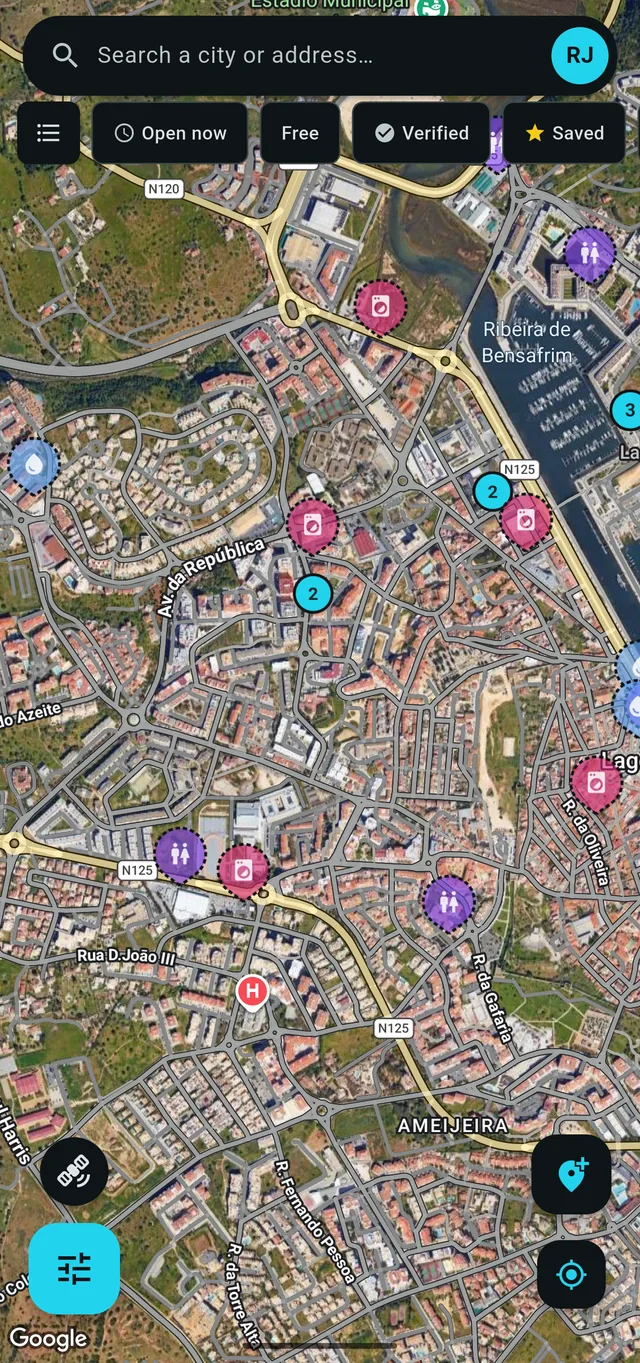
- 1. Tap the add button on the map Bottom right, there are two buttons: the lower one jumps the map to where you are, and the one above it, with a pin and a plus sign, starts a new place. If you are struggling to find the exact spot, the button at the bottom left, just above the filters, switches the map to satellite, which makes a specific building or entrance much easier to pick out.
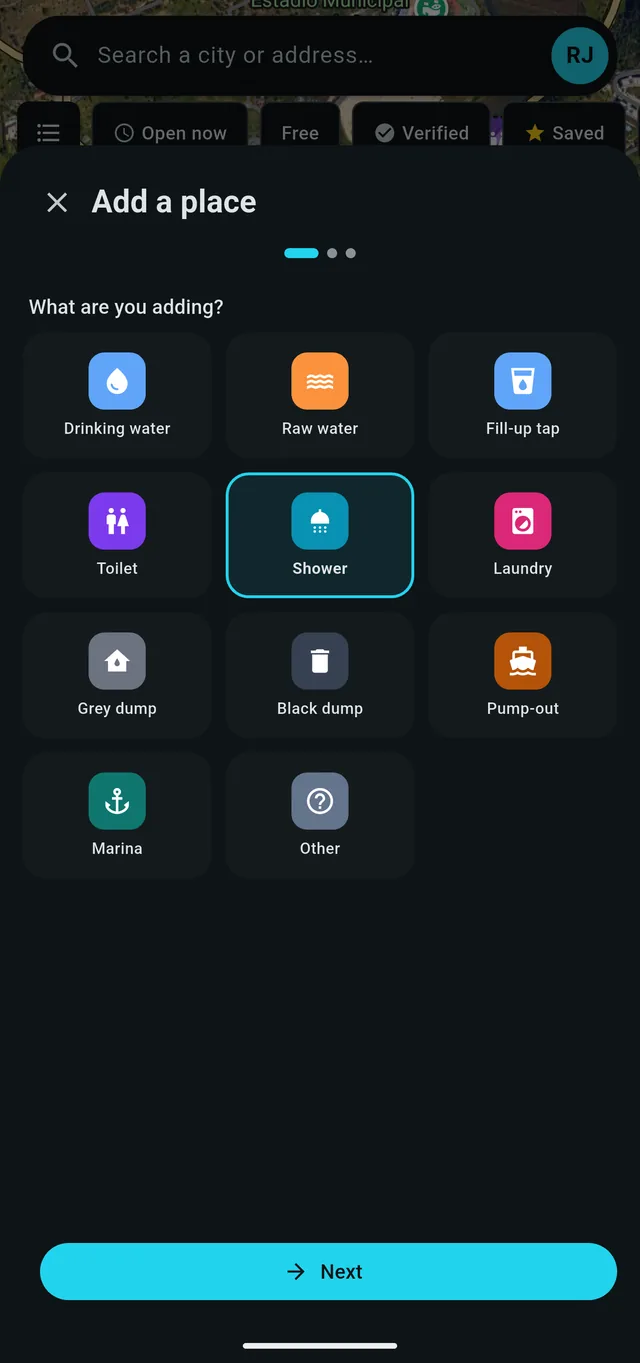
- 2. "What are you adding?" Pick the category: shower, toilet, drinking water, laundry, and so on.
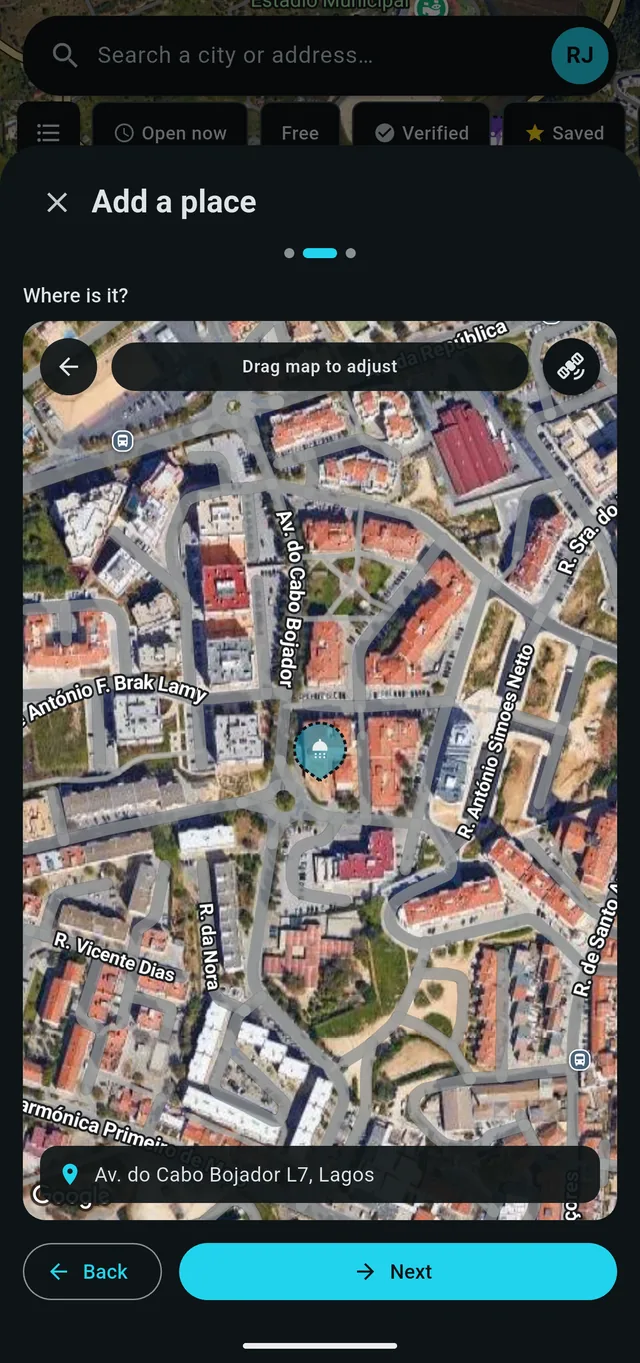
- 3. "Where is it?" Drag the map until the pin sits on the facility itself. On a big site, that is the shower block, not the front gate. The address under the map is a lookup for orientation only, and it is not what gets saved; see About the address.
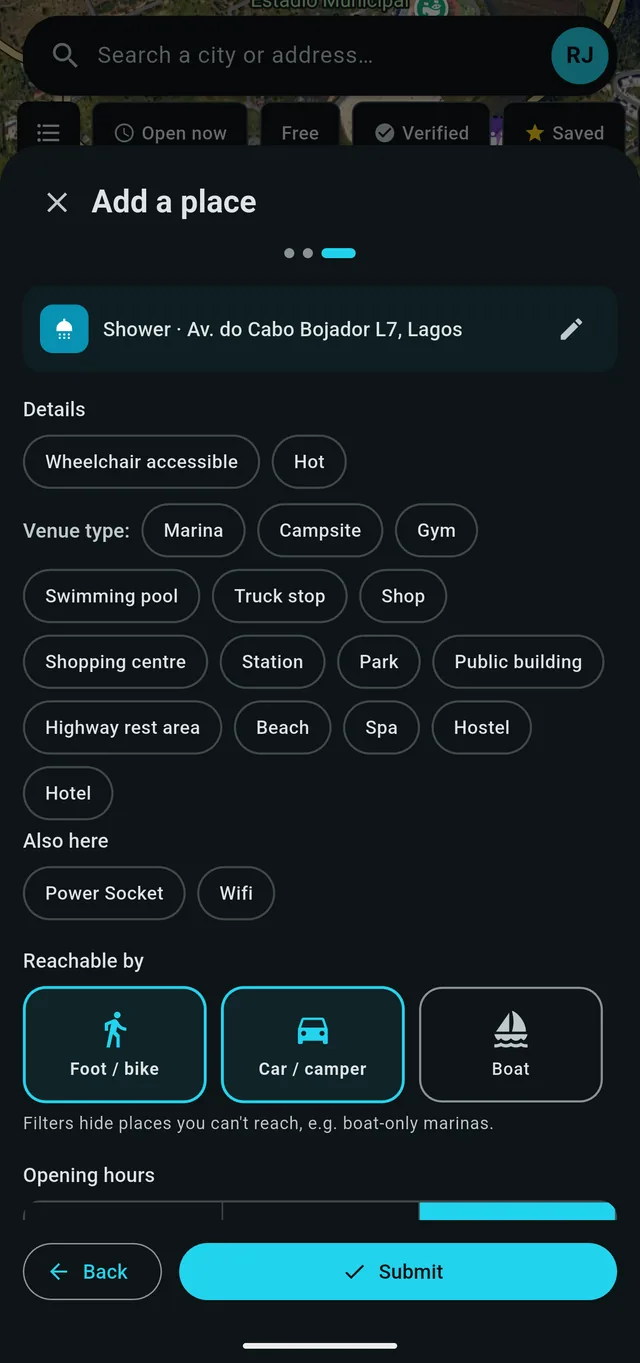
- 4. Details Opening hours ("Set hours", "Open 24 h" or "Not sure"), whether it is open all year or seasonal, how people reach it (on foot, by car, by boat), price and access, then a name, a description and a photo if you like.
- 5. Submit
About the address
While you are placing the pin, the app looks up an address and shows it under the map. That is there to help you confirm you are in the right place, and it is deliberately not saved: it is whatever the mapping service thinks is nearest, which on a campsite or a marina is often the road outside rather than the building you are standing next to.
The real address is filled in for you afterwards, by a job that runs overnight, so a place added today normally has its address by the next morning. There is no address field in the add-place form on purpose: it is one more thing to type for a detail the app can usually work out on its own.
Sometimes nothing arrives. The lookup checks the spot and the places near it, so a fountain in the middle of a park may simply have no address to find. That is not a fault in the listing, and the place works without one.
Either way you can set it yourself. Open the place, tap Add details, and you get the same form as adding a place plus a street and house number, pre-filled with whatever was found and empty if nothing was. An address a person types is never overwritten by the overnight job afterwards.
What happens next
A new place does not appear straight away, and that is normal. There are two waits, one after the other.
First, a person reads it. Everything from a new account is checked before it goes on the map, which is what keeps one wrong pin from misleading everybody. That is usually done within a day. Once an account has had three contributions accepted, its later additions and edits skip the queue and publish straight away.
Then the map catches up. The app refreshes the part of the map you are looking at about once an hour, so a published place takes up to that long to appear for everyone else. On your own phone it is there as soon as it publishes. If you have just added something and someone else cannot see it yet, this is almost always why.
Places that belong to a partner work a little differently: every change is read by us first, whether it comes from the business or from a passing stranger. Edits can take a bit longer, since we might also check with the owner that the information is accurate.
If a facility is already on the map, don't add it again: the app refuses a second place of the same kind within 25 m. Open the existing one and fill in what is missing instead.
If it is your own business
The steps above are the same whoever you are. When the facility is yours, there are some additional things you should consider about access and pricing and more: check out our partner guide for some tips and examples.